How TempoStep works.
TempoStep is a metronome that listens while you play and advances the tempo automatically when you stop. Practice at a comfortable speed, pause, and let the app push you forward.
The core loop.
In Auto mode, TempoStep listens through the microphone. When it detects silence for the configured duration, it advances the tempo by one step. You play, you stop, the tempo moves up. Repeat.
Everything else in the app controls how that loop behaves.
The main screen.
The screen is arranged top to bottom:
- BPM display: the current tempo, large and centered. Tap it to type a value directly. Turns amber when your target is reached.
- Beat row: dots tracking your position in the bar. Tap any dot to toggle an accent on that beat.
- Tempo adjusters: minus, Tap, and plus buttons for quick adjustments.
- Level meter: shows mic input in Auto mode. Replaced by arrows in Manual mode.
- Auto / Manual selector: switches detection mode.
- Tight / Medium / Wide chips: appear in Shuffle and Spiral modes only.
- Transport row: Hold lock (left), Play/Stop (center), Mode cycle (right).
- Status label: small line of feedback text at the bottom.
Beat accents.
Each dot in the beat row is tappable. Tap any dot to toggle an accent on that beat.
- Accented beats play a louder, higher-pitched click.
- Normal beats play the standard click.
- Accented beats glow at half brightness when they are not the current beat. The active beat always lights full amber regardless of accent state.
- Beat 1 is accented by default. Changing the beats per bar resets accents to beat 1 only.
Auto and Manual.
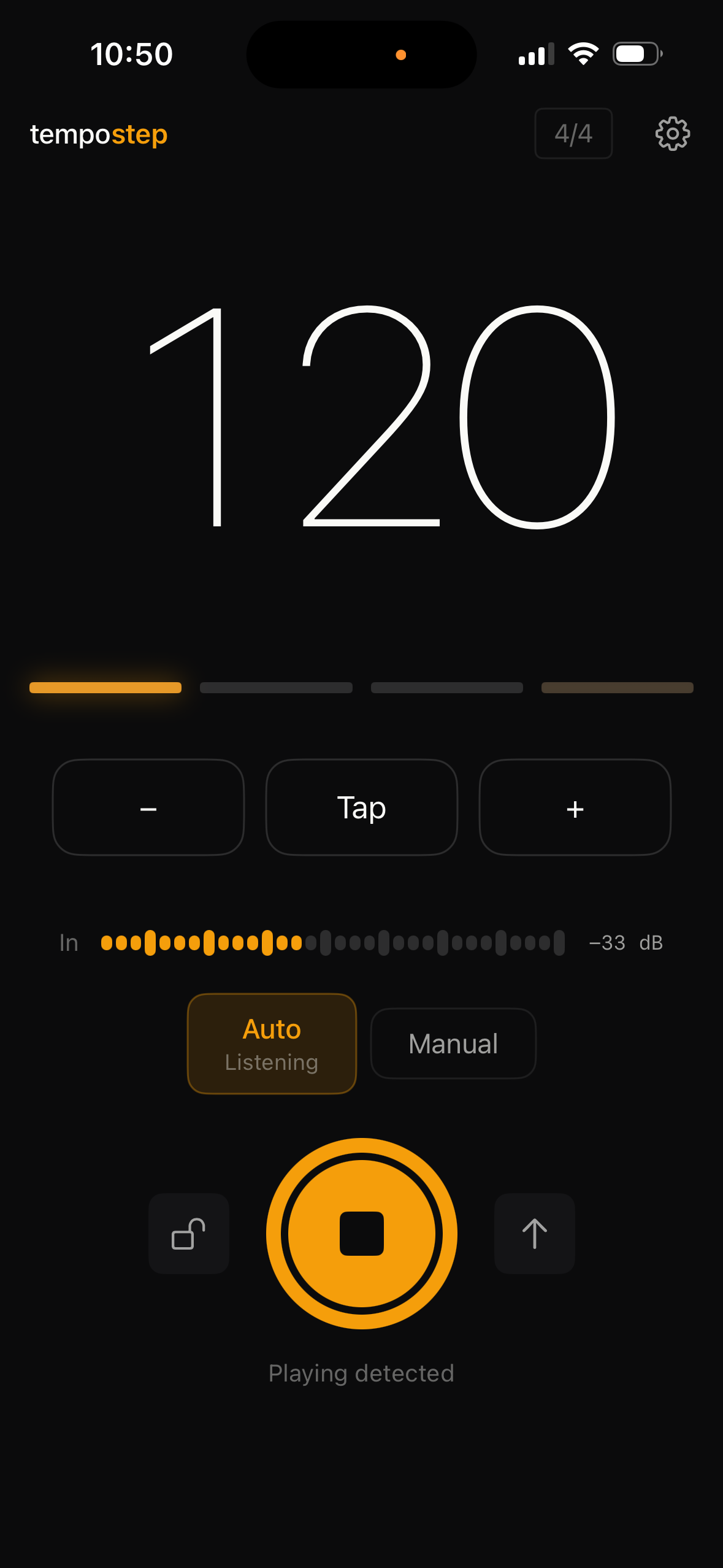
Auto
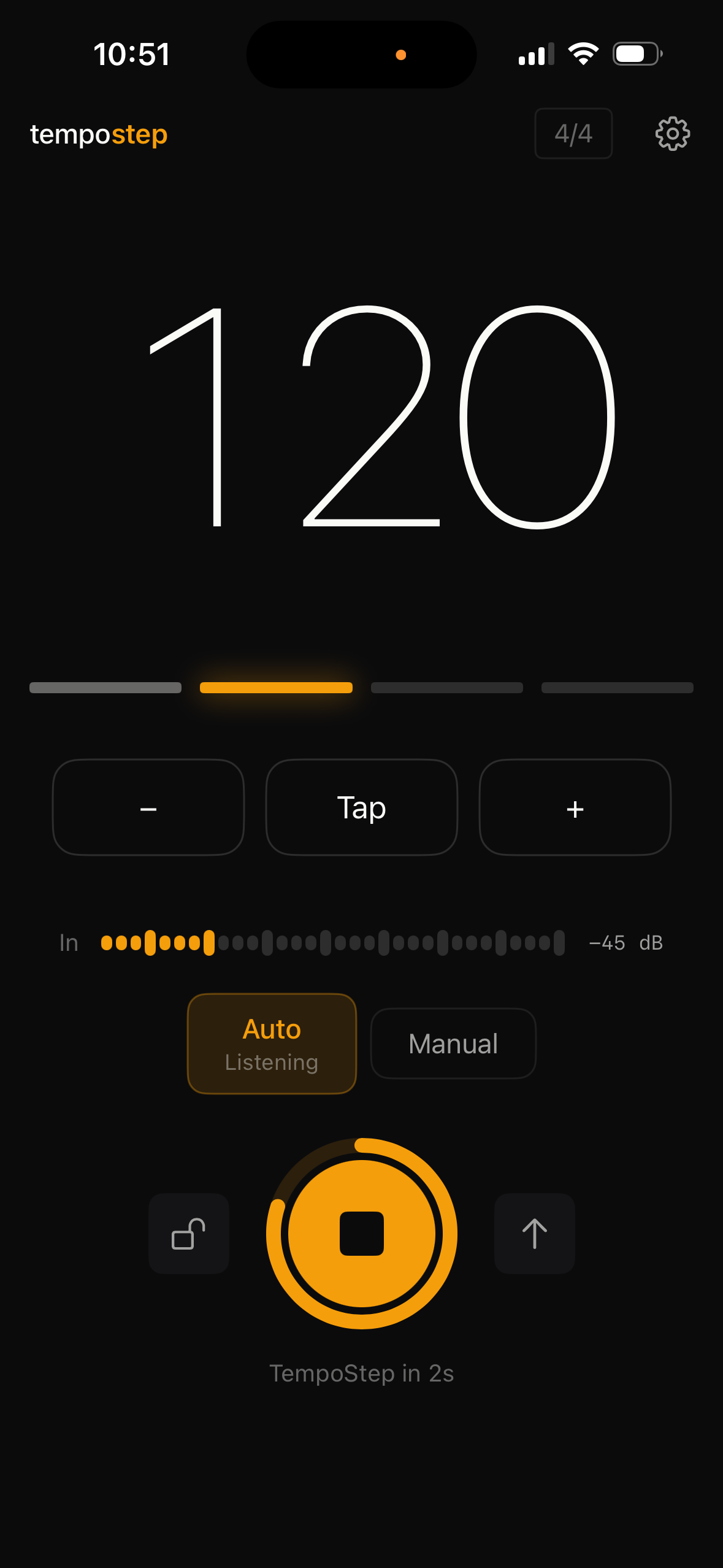
The mic is active. TempoStep detects when you stop playing and counts down before advancing.
The level meter shows what the mic is hearing. The ring around the Play button fills while sound is detected, then empties during the silence countdown before an advance fires.
Manual
The mic is off. Two arrows replace the level meter.
- Right arrow advances the tempo one step.
- Left arrow undoes the last advance, restoring the previous BPM. One level only.
Use Manual when you want full control over when the tempo moves, or when mic detection is not practical.
Mic calibration.
Every time you press Play in Auto mode, TempoStep spends 2 seconds listening to the room. Stay silent during this window. It uses that time to set a noise floor so detection works accurately.
The BPM display shows ··· while calibration runs. A message below reads "Calibrating mic, don't play yet."
Calibration also runs when you switch from Manual to Auto while playing, when you change the subdivision, or when the audio route changes (such as connecting Bluetooth headphones).
Four ways to climb.
Tap the mode cycle button (bottom right of the transport row) to step through four modes. The icon and color update to reflect the active mode.
Step Up → Shuffle → Spiral → Step Down
Step Up
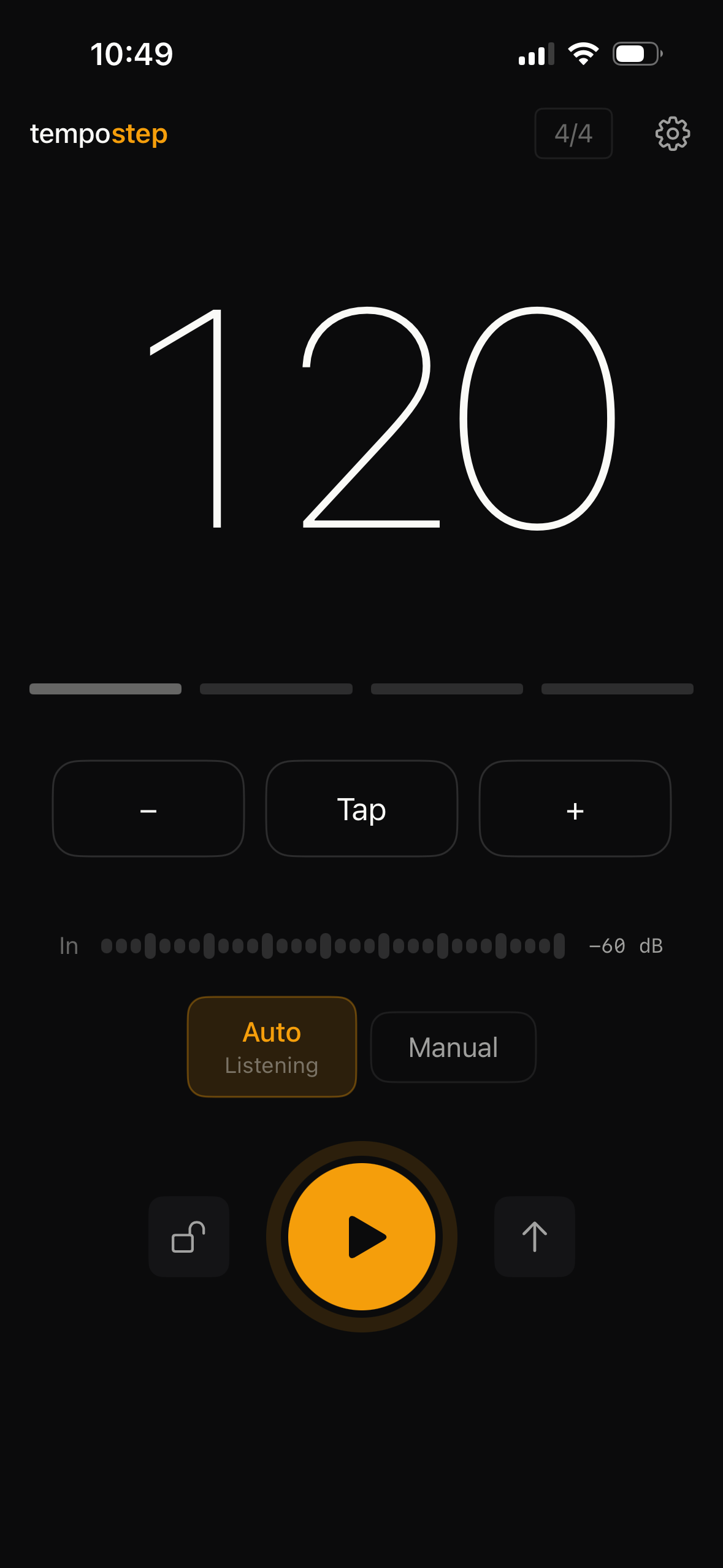
The default mode. Each advance adds your configured BPM step to the current tempo, up to a maximum of 240.
When the tempo reaches your target, the BPM display turns amber and a chime plays. The app keeps going if you keep playing.
Step Down
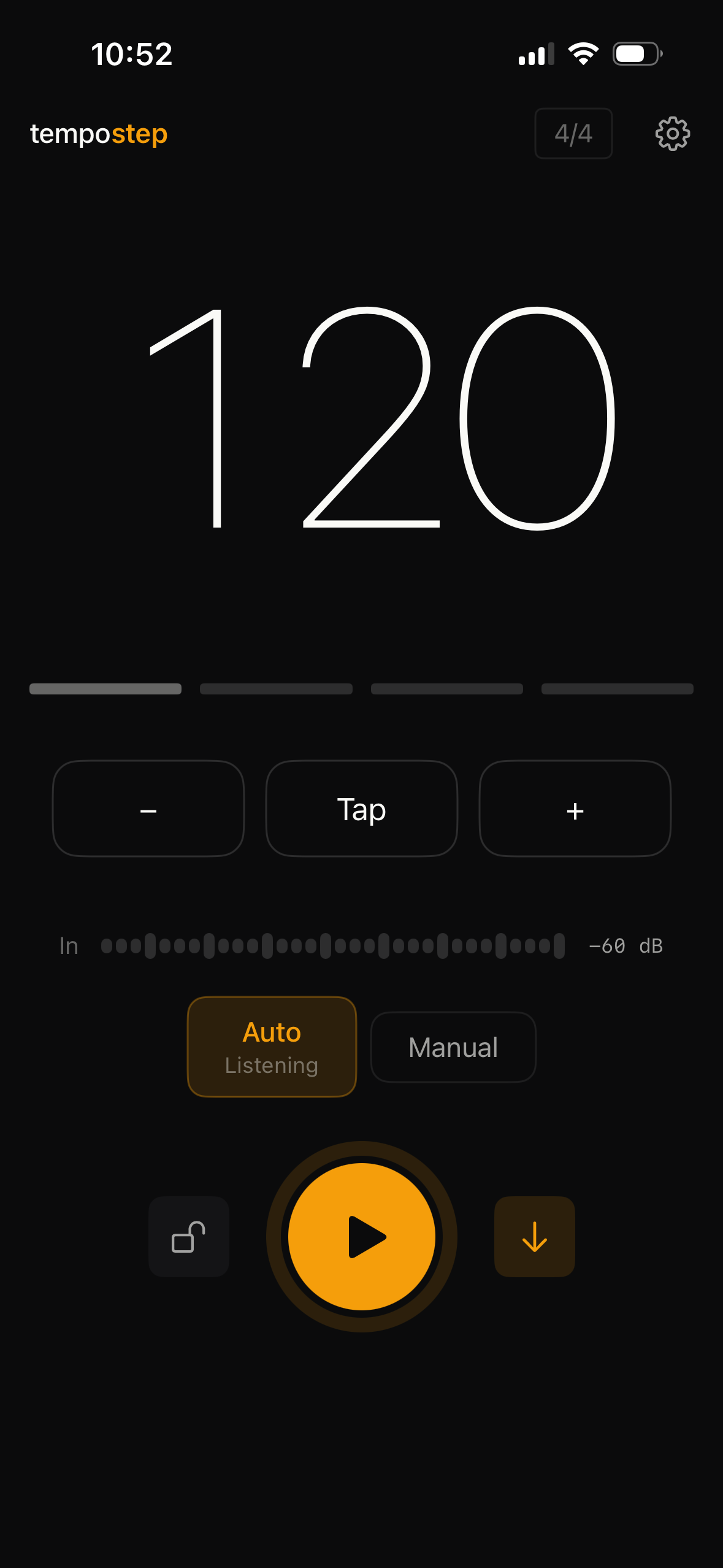
Each advance subtracts your BPM step, down to the Step Down target you set in Settings.
The BPM turns amber and a chime plays when the tempo reaches or falls below your Step Down target.
In Manual mode, the right arrow decrements just like an auto advance would.
Shuffle
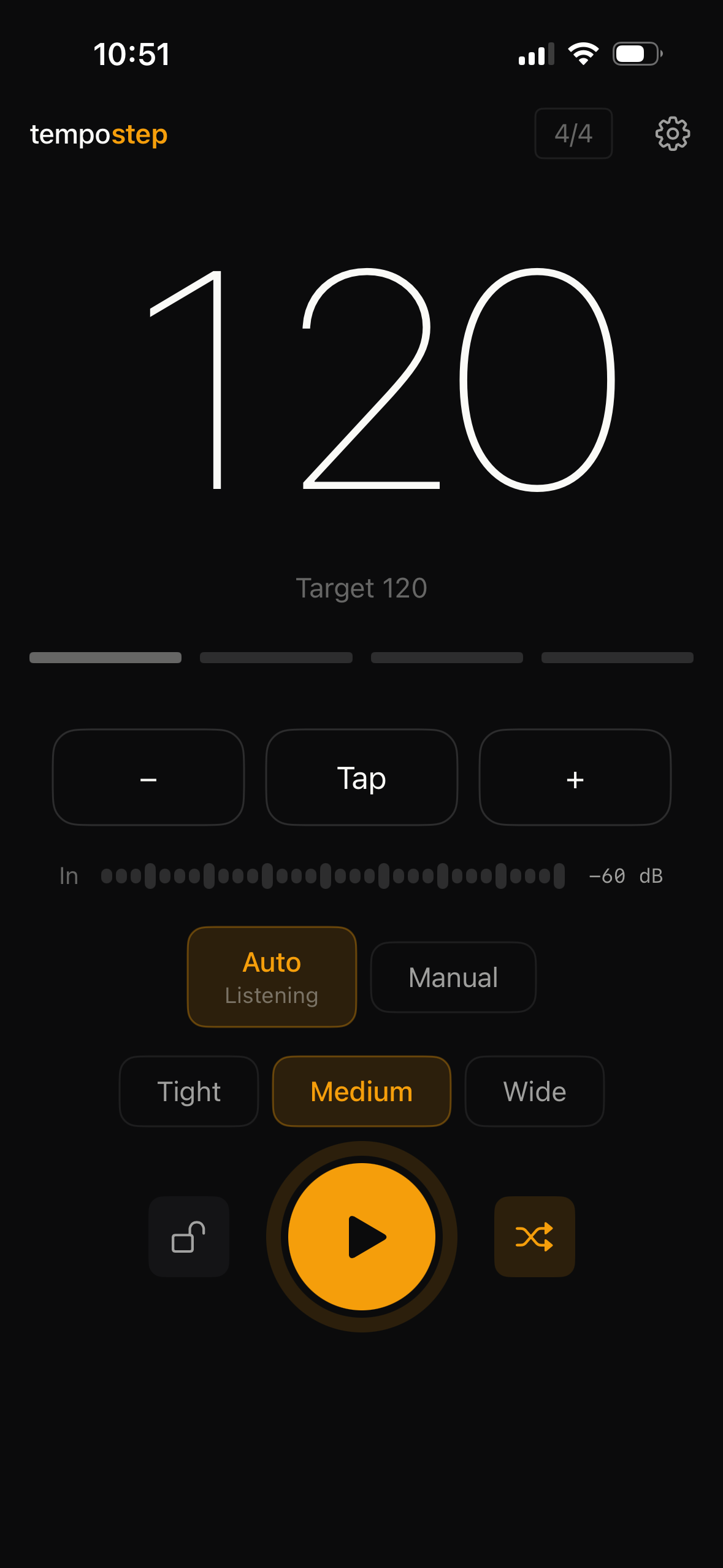
Instead of advancing in a straight line, TempoStep draws a random tempo near your target each time. The spread is controlled by the Tight / Medium / Wide selector.
| Setting | Spread |
|---|---|
| Tight | Within 10% of target |
| Medium | Within 20% of target |
| Wide | Within 30% of target |
The target tempo is shown below the BPM display. Adjusting the BPM manually while in Shuffle updates the target. When you stop the session, the BPM returns to your target.
No chime in Shuffle mode.
Spiral
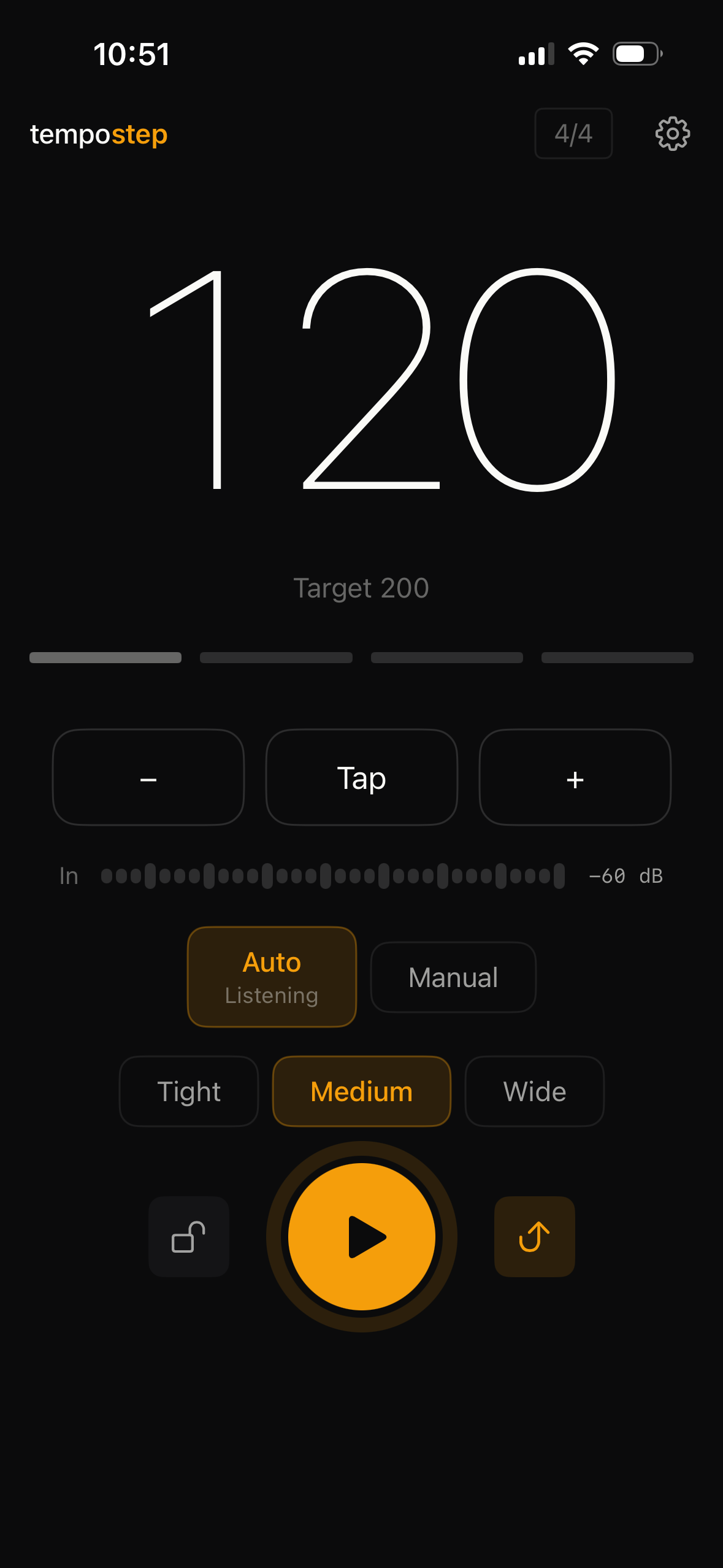
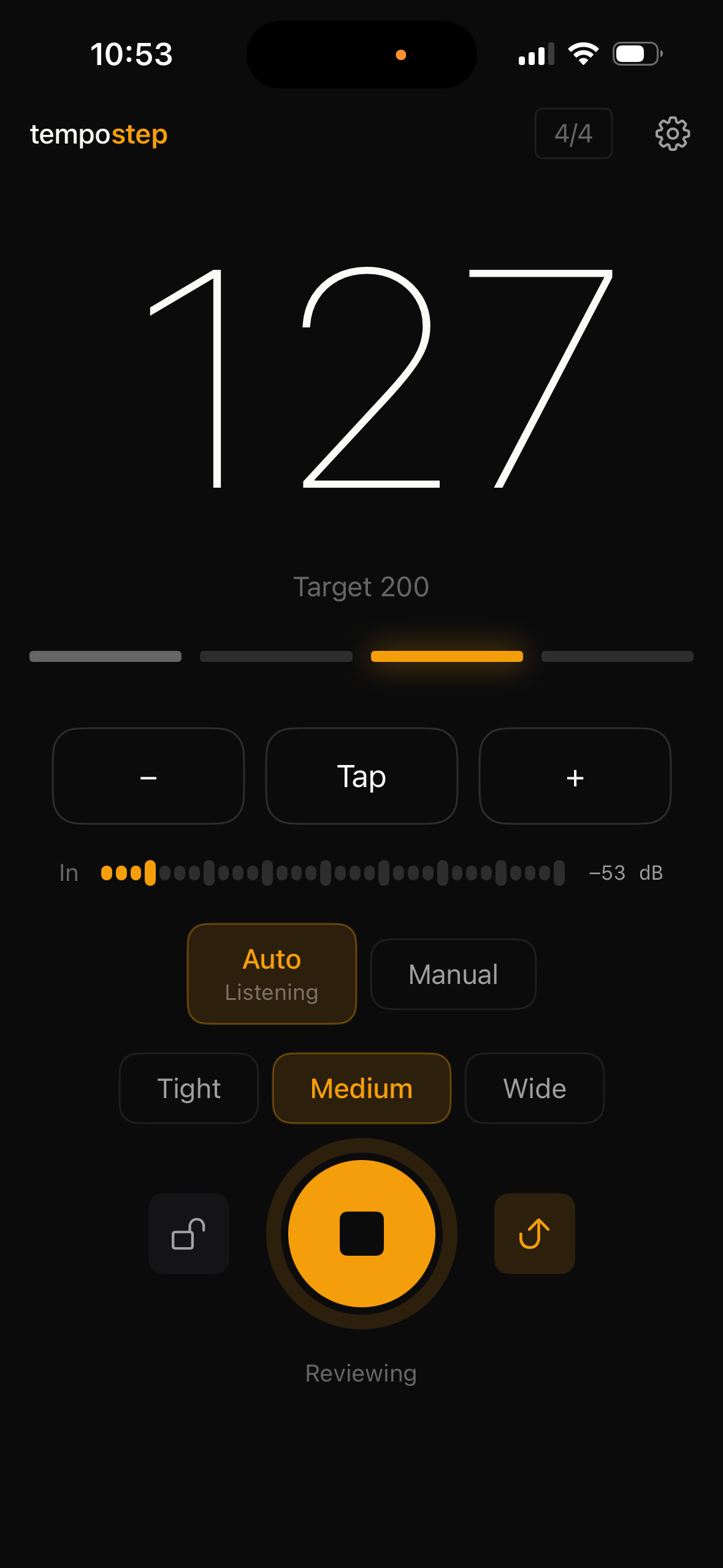
Spiral combines upward progress with deliberate review steps.
How a cycle works:
- The tempo advances normally for three steps.
- On the next silence, it drops back partway. Status shows "Reviewing."
- On the following silence, it resumes from the previous peak and climbs again.
The drop amount depends on the Tight / Medium / Wide setting:
| Setting | Drop |
|---|---|
| Tight | 25% of the distance climbed |
| Medium | 50% of the distance climbed |
| Wide | All the way back to the start of the session |
The target is shown below the BPM display. A chime plays when the tempo first reaches it.
Hold lock.
The lock icon sits to the left of the Play button. It is only available in Auto mode.
When locked, mic detection still runs and the countdown still shows, but the tempo never advances. The status label reads "Tempo held."
Use Hold lock when you want to stay at the current tempo without turning off Auto detection entirely.
Target BPM.
Set in Settings. This is the tempo the app is working toward in Step Up, Spiral, and Shuffle. Step Down uses a separate Step Down target setting.
- Step Up and Spiral: the ceiling. A chime plays when you reach it.
- Shuffle: the center point around which tempos are drawn.
- Step Down: uses its own Step Down target (BPM floor), also set in Settings.
The BPM display turns amber once the target is crossed. This resets when you stop or change modes.
The chime.
A short musical chime plays the first time your tempo crosses the target. You also feel three quick haptic taps.
It fires once per session and resets when you stop or change modes. Shuffle mode never triggers a chime.
Status messages.
| Message | What it means |
|---|---|
| Listening | App is active and waiting for silence |
| Playing detected | Mic heard your instrument |
| TempoStep in Xs | Countdown before tempo advances (Step Up, Spiral) |
| Shuffle in Xs | Countdown before next shuffle draw |
| Step down in Xs | Countdown before tempo decrements |
| Reviewing | Spiral is in its review drop step |
| Tempo held | Hold lock is active |
| Target reached | You hit your goal tempo this session |
All settings.
Tap the gear icon in the top right to open Settings.
Session
| Setting | What it does | Default |
|---|---|---|
| Beats per bar | Number of beats in each bar: 1 through 8 | 4 |
| Beat unit | The bottom number of the time signature: Quarter or Eighth | Quarter |
| Subdivision | Adds ticks between beats: 8th, triplet, or 16th | Off |
| BPM step | How much the tempo changes per advance (1 to 20) | 5 |
| Step delay | Seconds of silence before an advance fires (1 to 10) | 2 s |
| Target BPM | The goal tempo for Step Up, Shuffle, and Spiral (60 to 300) | 200 |
| Step Down target | The BPM floor for Step Down mode (40 to 300) | 40 |
Sound
| Setting | Options | Default |
|---|---|---|
| Click sound | Sample (recorded woodblock) or Synth (generated) | Sample |
| Detection sensitivity | Slider from Low to High. Raise if the app misses your stops; lower in noisy environments. | Medium |
Support
- Contact and Feedback: opens a pre-addressed email to the TempoStep team.
- User Manual: opens this page in Safari.
Settings are saved automatically.
All your settings: tempo, BPM step, step delay, target BPM, Step Down target, beats per bar, beat unit, subdivision, click sound, and detection sensitivity are saved as you change them and restored the next time you open the app. Nothing to export or set up again.